
Export from GlossGenius.
About 3 clicks. Do it on a computer: the web browser downloads the file, while the mobile app emails it to you instead.
- Sign in to GlossGenius in a web browser. You start on your dashboard.
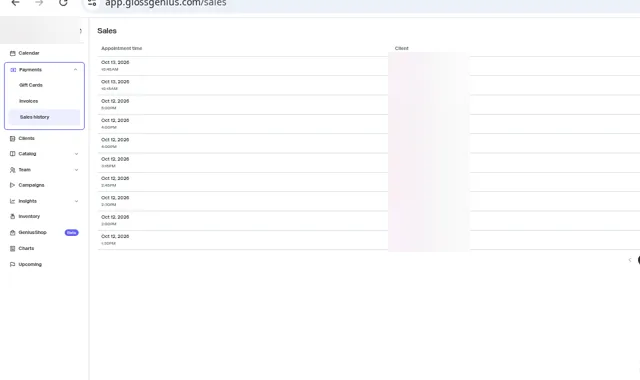
The left menu. Client and salon names are blurred. - Open Insights > Reports. In the mobile app it is Features > Reports.
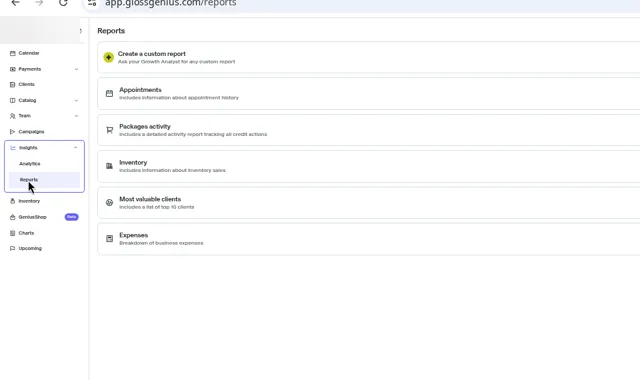
- Choose the report that lists every line item of every checkout. GlossGenius calls it Transaction detail ("includes all line items for each transaction"). Use the one your account shows.
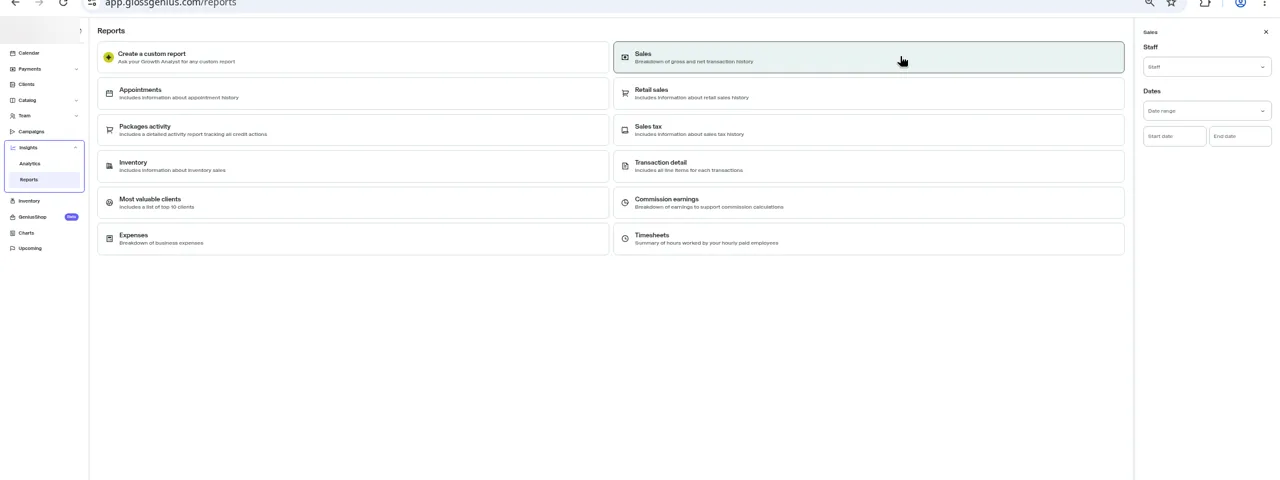
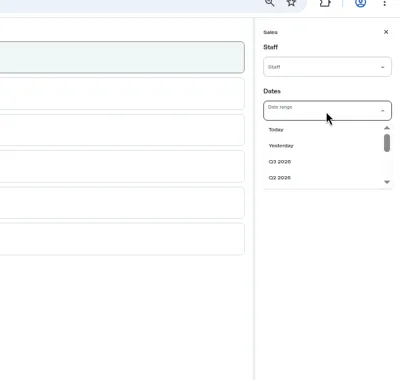
- Set the panel on the right. On a team account, choose All Staff so every stylist is in one file. Then pick a date range: a preset (Yesterday, This year, Last year) or start and end dates.
- Click Download. It saves as a .csv file.
- Upload it to Tangled. Sign in, then click Upload CSV / PDF (top right of the analytics page). Check the Import bar under the tabs, then open the Daily tab.
Export whole days. Menu names can change slightly as GlossGenius updates its app.
Your data stays yours. Files only; nothing connects to your POS.